 |
DvsenseDriver
1.2.6
The SDK for dvsense products.
|
|
DvsenseDriver
1.2.6
The SDK for dvsense products.
|
This tutorial introduces the connection requirements for DVSLume, DVSync, DVSLume-G1, and the DM3 module/camera, as well as how to verify the USB connection speed. The compatible Prophesee EVK4 follows the same USB 3.0 requirement as DVSLume.
DVSLume and DVSync require USB 3.0 or higher. The DM3 module/camera requires USB 2.0 or higher. DVSLume-G1 connects through a Gigabit Ethernet port instead of USB.
| Hardware Type | Required | Recommended | Remarks |
|---|---|---|---|
| DVSLume / DVSync / EVK4 interface | USB 3.0 or higher | USB 3.2 Gen 2 | Verify the USB connection speed after connecting the camera |
| DM3 interface | USB 2.0 or higher | USB 3.0 or higher | A 480M USB connection is sufficient |
| DVSLume-G1 interface | Gigabit Ethernet | Gigabit Ethernet or faster | Connect the camera to a Gigabit Ethernet port |
| CPU | Intel i5-10400 or equivalent | Intel i7-12700 or higher | Standard voltage processors are recommended. For laptops, please enable high-performance mode |
| Memory | 8GB DDR4 | 16GB DDR4 3200Mhz |
On Windows, it is recommended to use a third-party tool to view USB status information. Download USB Device Tree Viewer to inspect the USB device.
After downloading, you can find the inserted camera in the left panel of the software.
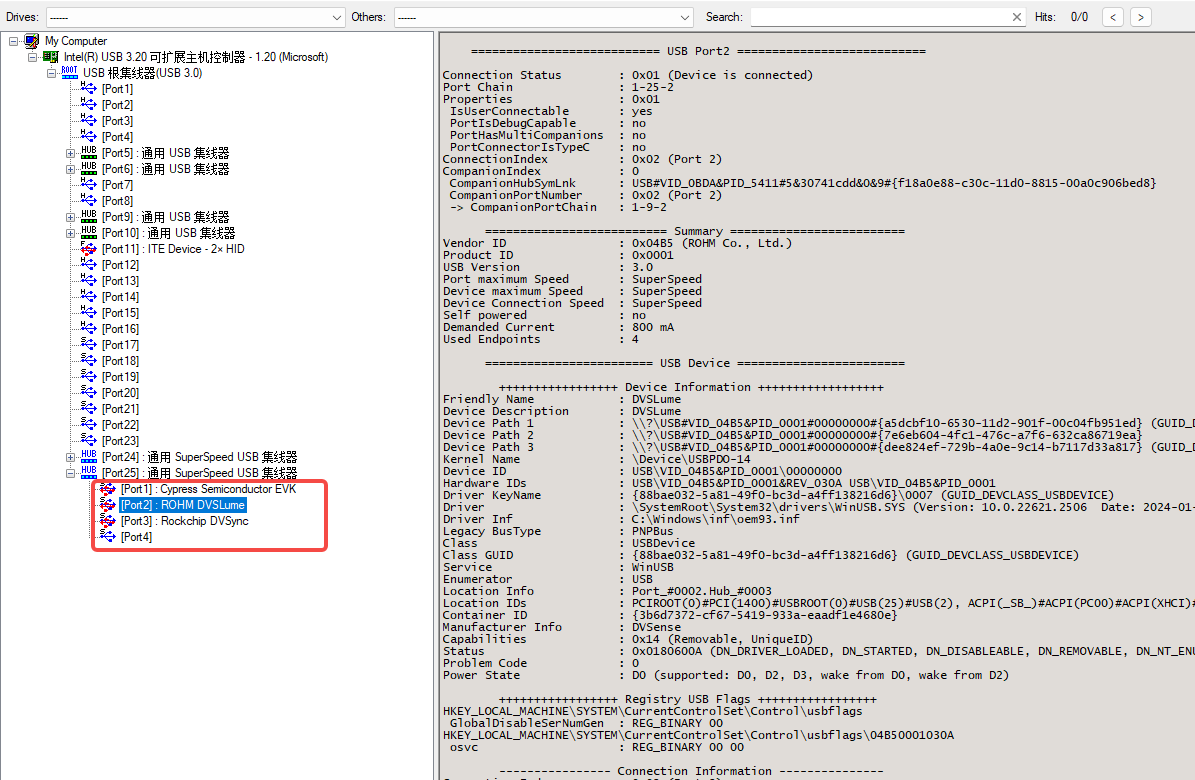
Select the camera device you want to inspect. Detailed descriptions will be displayed on the right. Check the following section to confirm that the USB version meets the requirement of the connected camera.
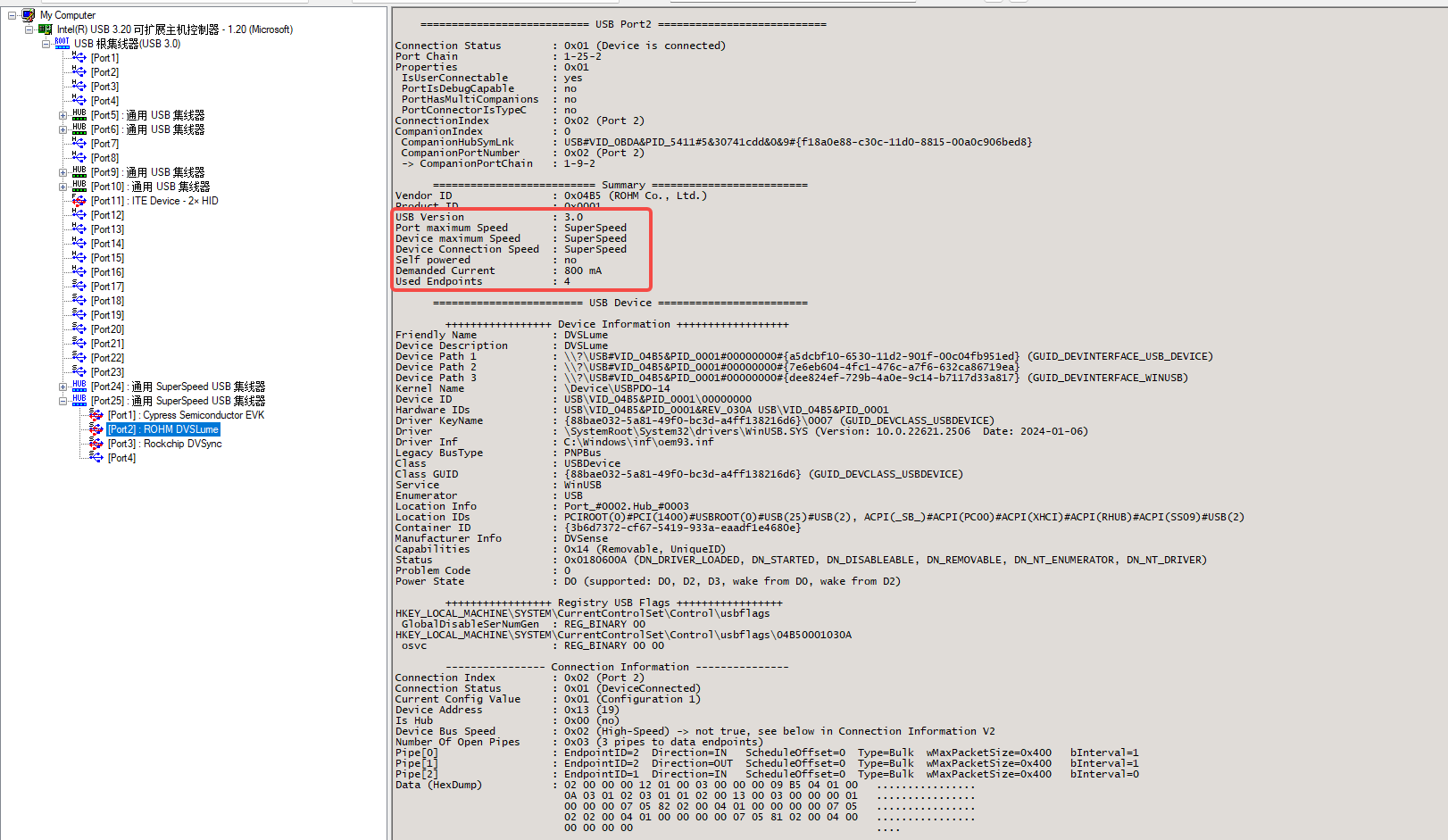
For DVSLume and DVSync, the USB Version field should show 3.0, 3.2 Gen 1 (5 Gbps), USB 3.2 Gen 2 (10 Gbps), or higher. For DM3, USB 2.0 or higher is sufficient.
Use the lsusb command to view the camera location.
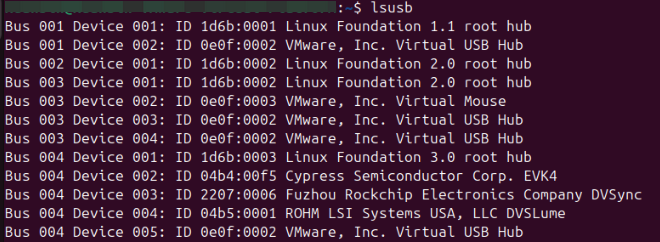
In the image above, Bus 004 Device 002/004 represents the event camera, and Bus 004 Device 003 represents the fusion camera.
Use the lsusb -t command to find the USB device corresponding to the Bus and Device numbers, as shown below:
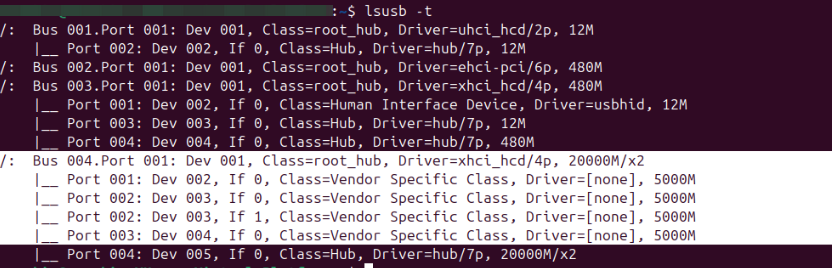
If it displays 480M, the camera is connected through USB 2.0; this meets the DM3 requirement but not the DVSLume or DVSync requirement. DVSLume and DVSync must be connected through USB 3.0 or higher, which is normally displayed as 5000M or higher.